GarageBand
Free
iPhone · iPad · Mac
Record demos, build beats and arrange songs with instruments, loops and guitar effects.
Apple devices only; mobile and Mac features differ.
WORK / MUSICIAN
Switch tools here without losing your open entries.
Tap or strum to play. Start with low media volume. If silent, check volume and output; on iPhone, try Silent Mode off.
Record DJ mix DJ decks + FX only · no microphone or live instruments.
Playlist maker · turn your MP3s into one mix →
Only this open page changes. Your SubeR branding and saved appearance stay unchanged. Logo files are read in this browser, not uploaded or saved by this feature. Reloading removes the preview; browser history or session recovery may retain the page.
PNG, JPEG or WebP only. Maximum 2 MB and 4096 × 4096 pixels. Choose an image you have permission to use, not private documents or photos.
Enable JavaScript to use these temporary appearance controls.
Play any instruments together. Start each yourself.
Use the same guitar, bass, ukulele, piano, drums and metronome together. The DJ mixer now opens separately at /dj. Start each yourself. Sound has shared headroom across all instrument views; raise device volume cautiously. Switching views keeps started playback running. Stop all sound or leaving this page stops instruments safely. The separate DJ page records its decks and sound effects, not these live instruments. An explicitly started metronome keeps going until Stop all sound.
Loading interactive guitar…
MUSICIAN / PLAY ALONG
Right-handed view · thin high E on top · frets increase toward the body →
Tap to play. Edit to move/remove. Add any selected library shape. Tray resets on reload; saved shortcuts stay separate.
One repeating 4/4 bar. Each slot is half a beat. Changing chord or playing manually stops this loop.
Choose BPM, then Capture taps. First tap starts a four-beat bar. Tap/click the pad or press Space on it; taps snap to the nearest half beat. Finish to use the pattern. No microphone or audio recording.
Interactive guitar is loading. Chord instructions below remain readable.
Tap a string or fret to explore a note.
Sound starts only after you play or test it. Begin with low device volume.
Boost available up to 250%. Turn speaker volume down before boosting. This changes guitar sound only.
Click or Tab into this play area, then press A–G to play matching chords. Use arrow keys to strum again. No Enable step required.
Save to keep your guitar shortcuts on this browser.
Each assigned letter plays once and selects the chord for the arrow keys. Touch string pads below always pick individual strings.
Loading the full chord library. Four starter shapes remain readable below.
Conventional upright chart · low E on the left, high E on the right. Numbers inside dots are fingers; numbers beside the grid are frets.
Tap a fret to pick its exact note. Drag to scroll the neck.
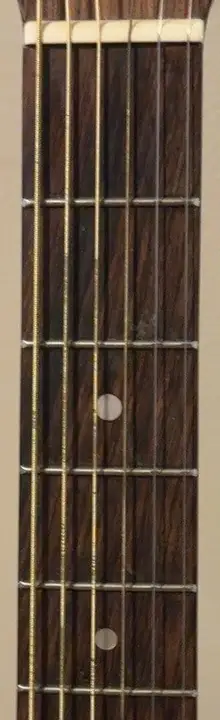
Upright front view · nut at the top; low E on the left, high E on the right. This is a different view from the horizontal player-view diagram above.
This photo shows only frets 1–5. Scroll inside the photo to explore them.
Practice shortcut pads · These belong to the guided exercise, not your custom chord buttons.
G → Em → C → D. Keep the pulse steady while changing shapes.
Four beats per bar, eight bars, then a clean finish. Synthesized plucked tones, not a guitar recording or a commercial song. Pause resumes the current beat; tempo and sound changes pause playback.
Small screen: the strum body sits below the neck. Swipe the fretboard sideways for more frets; note targets stay full size.
1 index · 2 middle · 3 ring · 4 little finger. O open · X skip · gold line = one finger holding a barre. Place fingertips just behind the fret wire, toward the nut.
Standard tuning, low to high: E A D G B E · no capo · A4 = 440 Hz. This player-view layout keeps the neck to your left and the body to your right. It does not mirror the pitches.
Tap any fret to hear its note and see it light up. Gold circles show chord fingers; the vertical gold line means one index finger holds a barre across the strings. O = open string; X = do not strum. Finger numbers: 1 index, 2 middle, 3 ring, 4 little finger. Computer keys: Tab to a note, Left / Right moves along the frets, Up / Down changes strings, Enter or Space plays. Other note names appear when focused or played. Sound off keeps visual feedback.
Tap a chord pad to play it. Brush down or up across the body strings with a finger or pressed mouse; each crossed string rings. Tap one string to pick it. X strings stay silent. Computer keys: Tab to a string or chord, then Enter or Space. Up / Down changes strings. Escape or Damp strings stops sound without changing your chord.
Fret 1 is nearest the nut. Put your fingertip just behind the fret wire, not on it. Fingerings are one common option, not the only way. A higher fret window separates its open-string column from the fretted neck.
16 common open shapes plus four movable E-family shapes transposed to all 12 roots. Barres use one index finger across strings 6–1, not several index fingers. They are intermediate shapes; high-fret access varies by guitar. The board follows the selected fret position. A sharp and its equivalent flat sound the same here; note labels use sharps. Major 7th, suspended, diminished, alternate tunings and capo shapes are not included.
Read these shapes from low E to high E. X means omit the string, 0 means open; other numbers are frets.
Starter fingering references: Fender G (external), Fender Em (external), Gibson C (external), Gibson D (external).
Expanded shape references checked 25 October 2026: Fender A / movable major (external), Fender E (external), Fender Am (external), Fender E7 (external), Fender Dm (external), Fender B7 (external), Fender C7 (external), Fender D7 (external), Fender A7 (external), Fender G7 (external), Fender Am7 (external), Fender Em7 (external), MuseScore movable shape / root chart (external), JustinGuitar barre lessons (external). Transpositions are calculated locally from standard tuning, not copied song charts. The common open C7 omits the fifth (G); its E-family barre includes it. Fingering guidance is one practical option, not an assessment of your playing.
Starts only after you use Play, a chord pad, a string, a note or Test sound. Both the horizontal fretboard and body show high E at the top and low E at the bottom. This is a right-handed player-view diagram, not a mirrored front view or an exact photographic projection. On narrow screens the strum body moves below the neck; the fretboard scrolls locally rather than shrinking its note targets. Synthesized tones are a lightweight practice aid, not sampled acoustic-guitar sound. The test sends an A4 tone and turns Sound on. If it stays silent, check this tab is not muted and your selected speaker or headphone output. The page cannot detect whether you hear the tone. Turn your device volume down before first use. Playback pauses when this tab is hidden, you leave the page, or start the separate metronome. Visual timing can lag sound on busy devices. No microphone, recording, upload, saved practice settings or embedded player. YouTube links in the setlist remain references only; this tool does not detect or follow chords from a song link.
MUSICIAN / PRACTICE
One shared beat for all instruments. Set BPM and click volume, then Start. Keeps playing when you switch instruments or browser tabs if your browser allows it. Stop or leaving this page ends playback.
40% keeps the original quiet click; 0% mutes it. Raise gradually. If mixed instruments distort, lower their volume or your device volume. The click is not added to DJ recordings.
Enable JavaScript to use the metronome.
Practice aid, not guaranteed studio timing. Every beat is equal; no time signature is assumed. Visual timing may lag audio. No microphone, recording, upload or saved settings.
MUSICIAN / PLAN YOUR PRACTICE
Divide the time you have. See what is left or how far the plan runs over.
Allocated minutes = warm-up + focused parts + run-through + breaks / other. Remaining = available − allocated. Negative remaining means the entered plan is too long. Enter your own allocation, including 0 for an unused category. Whole minutes, at most 1,440 per entry. This is a time budget, not a prescribed practice routine or a timer.
The JBL and iPod Nano mixer is now at SubeR DJ.
Open DJ →MUSICIAN / CREATE & MIX
Make songs or mix DJ sets. Choose software for your device.
Free
iPhone · iPad · Mac
Record demos, build beats and arrange songs with instruments, loops and guitar effects.
Apple devices only; mobile and Mac features differ.
Free Studio + paid memberships
Browser · iOS · Android
Record, arrange and collaborate using a browser or mobile music studio.
Paid Pro/Max add tools and track capacity. Check cloud saving and sharing choices.
Free / open source
Mac · Windows · Linux
Record, trim, edit and export audio, including demos and spoken recordings.
Desktop audio editor, not a phone app. Optional plugins and services are separate.
Paid licence; 60-day evaluation
Mac · Windows · Linux
Multitrack audio and MIDI recording, editing, mixing and mastering.
The 60-day evaluation is temporary, not a permanent free tier.
Free / open source
Mac · Windows · Linux
Mix digital music files with beat/key detection, effects and supported DJ controllers.
Desktop only; no official paid Pro version. Check controller compatibility.
Free core + Pro subscription
iPhone · iPad · Android · Mac · Windows
Start two-deck mixes on a phone, tablet or computer; expand to advanced performance tools.
Pro adds advanced tools and fuller hardware support. Streaming requirements are separate.
Lite free; Pro paid purchase or subscription
Mac · Windows
Learn laptop DJ mixing in Lite, or use Pro for more cues, saved loops and compatible performance hardware.
Lite works without a controller in Practice Mode. Pro adds features; hardware compatibility varies.
Free tiers + paid subscriptions
iPhone · iPad · Android · Mac · Windows
Prepare a music library and DJ sets, with desktop and mobile mixing options.
Mobile and desktop plans differ. Advanced tools and hardware unlocks depend on plan or equipment.
Official sources checked · No affiliate links. Check current plans, device and controller requirements. Music-streaming subscriptions may cost extra.
Clear resets these temporary worksheets and checks; on Play it also resets guitar practice and stops its practice/metronome. It does not delete saved copies, receipts, wardrobe, packing lists or downloads.
Nothing is uploaded by these local tools. SubeR DJ records only when you choose Start recording; export your mix before leaving. Receipts save only when you choose, on this browser and device; they are not encrypted or cloud-synced.
Temporary show labels, dates and addresses are not saved in show-day drafts. A stage time copied into the planner can be saved with its draft.
Food locations stay temporary; a location is shared only when you choose an external search or paste it into a service. Keep private records and unreleased music out of these calculators.