GAMING
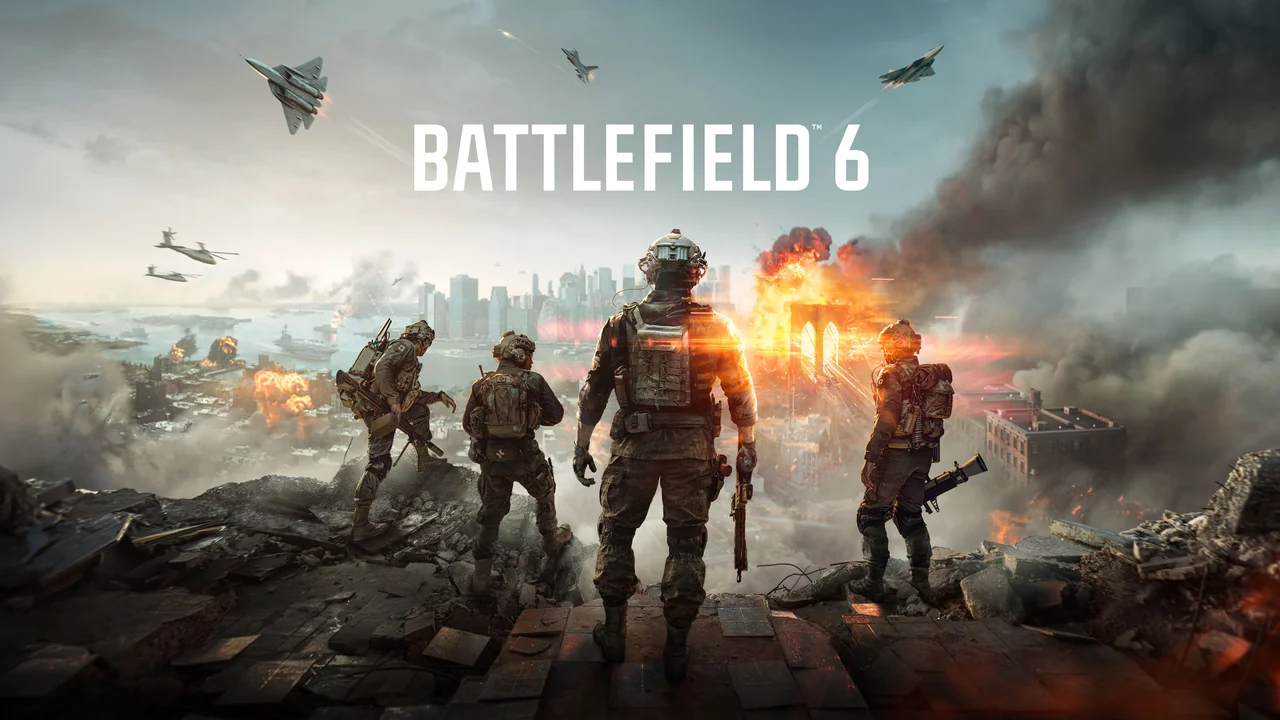
Official Battlefield 6 Standard Edition cover artwork.

SubeR GAMING · PS5 focus; platform limits on each card

Battlefield 6

Find your controller buttons

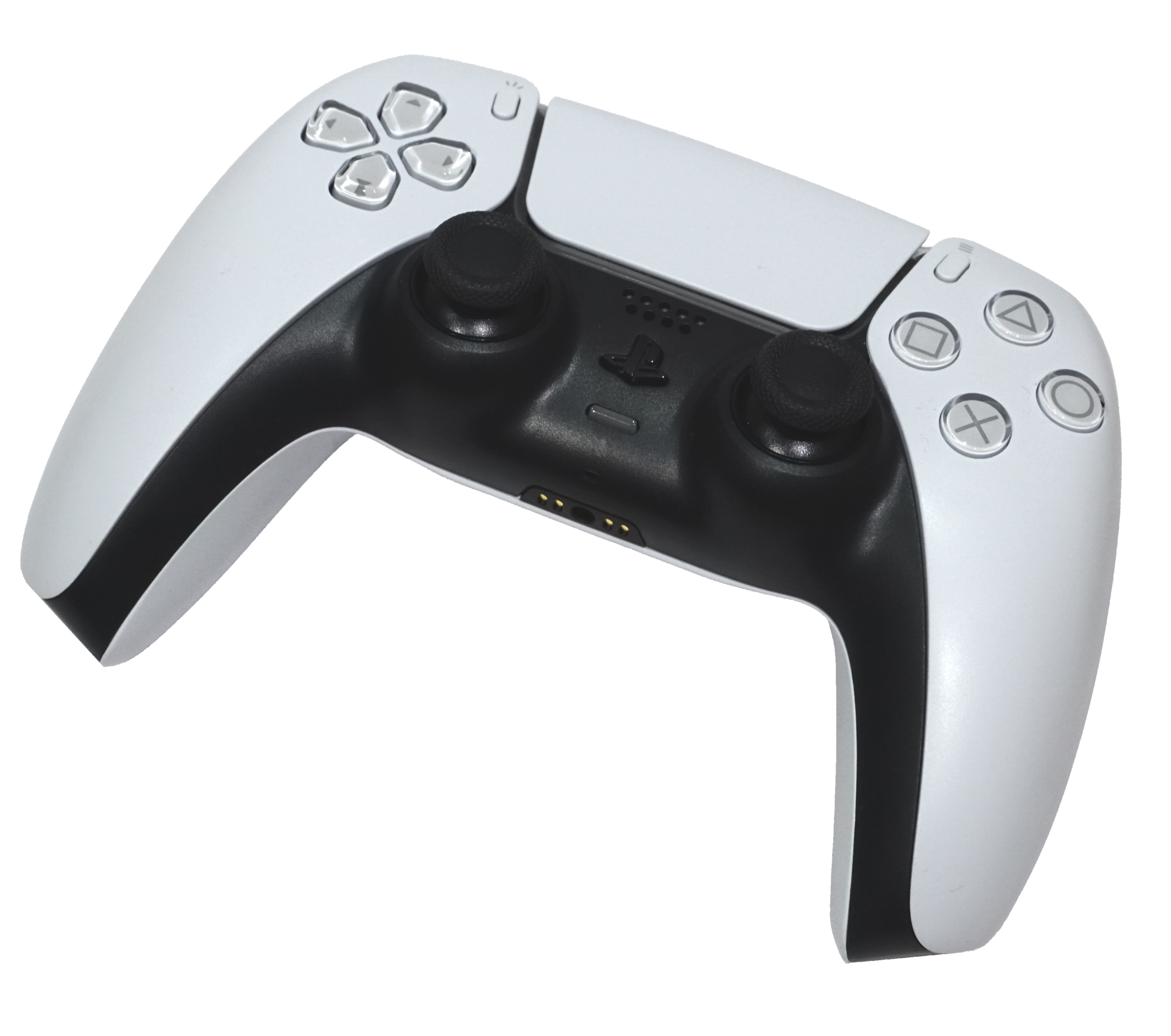
PS5 controller

Tap or click a button on the controller to see what it does.

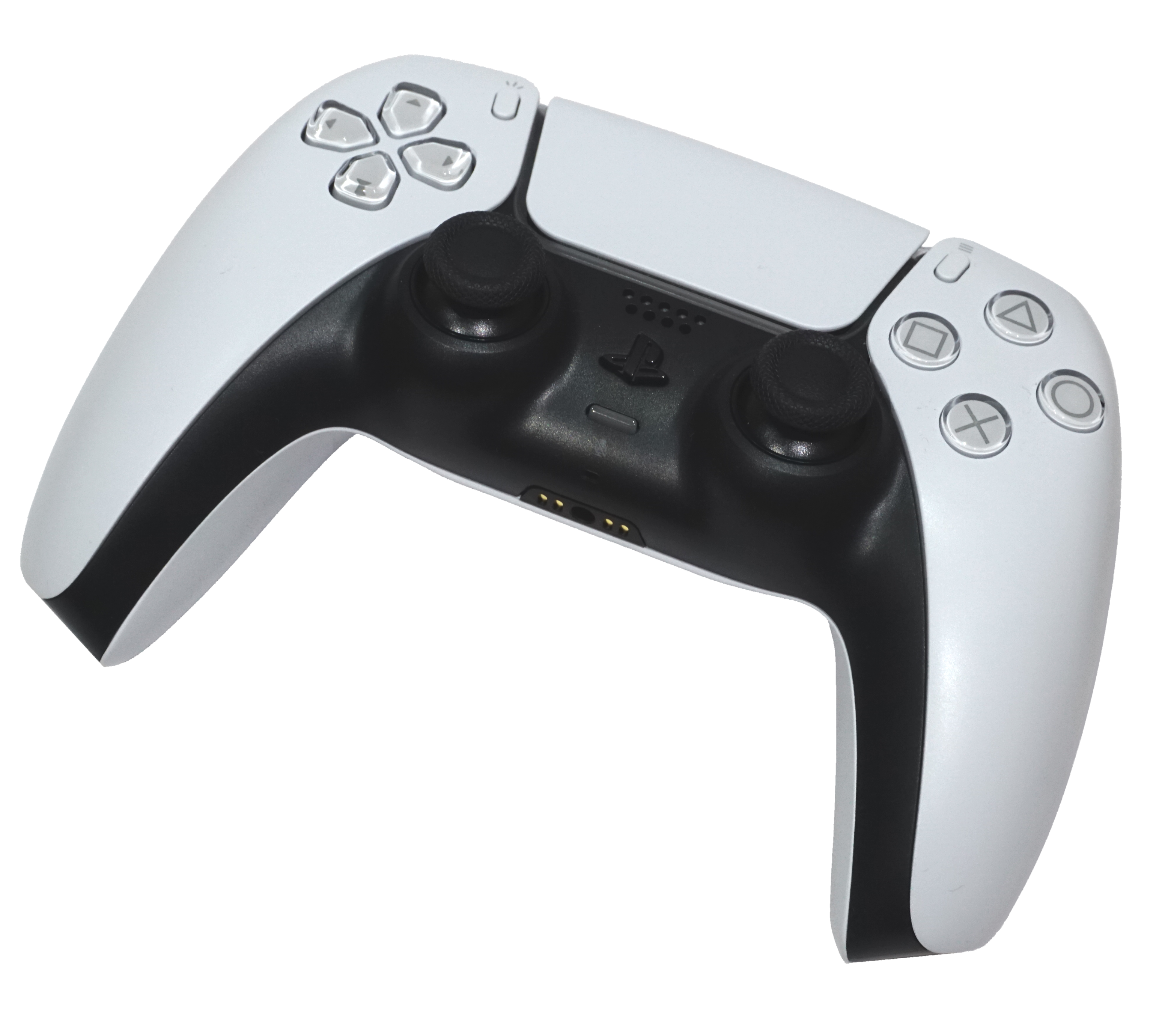
Real white and black DualSense controller photographed from the front at an angle. The entire controller is in frame; its rear shoulder buttons and triggers are hidden.
Scene illustrations · not gameplay

Default reference · check your in-game scheme.

Layout caveats

Default layout reference. EA’s pictured layout is Season 1; game updates, remaps and custom presets can differ. Check your in-game Controller Schemes.

Choose a button
Info, credits & all buttons

Default-layout references, not independently tested in-game. On-foot actions combine EA’s Season 1 pictured layout with published control reporting; the selected action links its source. Sources checked 2026-10-21. Jet directions follow the selected Classic or Simplified flight mode; helicopter entries cover Classic only. Match your current Controller Schemes, vehicle seat, loadout and inversion settings. Some publisher bindings conflict; the selected control will say when they do.

EA Soldier controller scheme (opens new tab)EA vehicle controls (opens new tab)EA jet controls (opens new tab)Full PS5 hardware reference

Photo & button reference

Photo: Alex Cochrane / Wikimedia Commons (opens new tab) · CC BY-SA 4.0 (opens new tab). Background removed by Suber using an alpha-only mask; full-resolution original preserved; resized display copies. Interactive labels and highlights are separate page elements. This labelled photo reference is also CC BY-SA 4.0. No endorsement implied.
Save original photo · Open full size (new tab)

Behind the controller · not visible

Front controls

△ Triangle
Top face button
○ Circle
Right face button
× Cross
Bottom face button
□ Square
Left face button
D-pad
Four directions, left side
Touchpad / touchpad button
Large top panel; press it as a button
Left stick / L3
L3 = press the left stick
Right stick / R3
R3 = press the right stick
Create
Left of the touchpad
Options
Right of the touchpad
PS button
PlayStation symbol below the speaker
Mute
Small button below PS

Behind the controller, not visible here: L1 / R1 are shoulder buttons; L2 / R2 are triggers. Sony’s hardware reference (opens new tab) shows their locations.

Infantry and vehicles use different controls. EA’s settings article labels its controller section as PC; its numbers are not presented here as verified PS5 defaults. Use the game’s own Controller Schemes view for your selected preset.

What should I play?

Try Team Deathmatch

Focus on kills. Squad Deathmatch is another option.

Menu steps & source

Find it: Play → Multiplayer → Custom Search → mode + maps → Play.

Check the playlists currently shown in-game.

SubeR suggestions · EA sources checked 22 October 2026.

EA mode guide (opens new tab)
Start with Conquest

Capture objectives across large maps. Also try Breakthrough or Escalation.

Menu steps & source

Find it: Play → Multiplayer → Custom Search → mode + maps → Play.

Vehicles depend on the map and playlist; a seat is not guaranteed.

SubeR suggestions · EA sources checked 22 October 2026.

EA mode guide (opens new tab)
Look for Rush

Attack or defend M-COMs. Try King of the Hill or Domination too.

Menu steps & source

Find it: Play → Multiplayer → Custom Search → mode + maps → Play.

These modes rotate weekly. Check Play for this week’s selection.

SubeR suggestions · EA sources checked 22 October 2026.

EA mode guide (opens new tab)
Jets: search Portal

Search “jets” or “dogfight”. Search ideas, not verified servers.

Portal setup & source

Find it: Community → Browse Servers → Filters. Look for a jet-focused experience and read its rules before joining.

Check players, ping, vehicle rules and progression in-game. No live server list is checked here.

SubeR suggestions · EA sources checked 22 October 2026.

EA Portal help (opens new tab)
Explore REDSEC

Look for Rapid Royale for shorter survival matches, or Ranked for competition.

Menu steps & source

Find it: Play → REDSEC → choose an available playlist.

Check the current playlist and squad size in-game.

SubeR suggestions · EA sources checked 22 October 2026.

EA mode guide (opens new tab)
Choose Campaign

Single-player missions rather than a multiplayer lobby.

Menu steps & source

Find it: Play → Single Player Campaign → choose your difficulty.

Want to queue alone against players instead? Check REDSEC’s current solo options.

SubeR suggestions · EA sources checked 22 October 2026.

EA mode guide (opens new tab)

Availability varies · sources inside each option.

Quick lessons

Illustrations, not gameplay
Real DualSense controller photo; match your in-game scheme.Your selected presetCheck your controlsSettings → Controller Schemes
  1. Open the full Settings with the main-menu cog. Find Controller Schemes and read your selected preset and any remaps.
  2. Check the context: infantry, vehicle or UI. Vehicle settings distinguish ground vehicles, aircraft and helicopters.
  3. In a safe practice context, confirm movement, looking, interacting and vehicle exits before playing.

EA verifies that Controller Schemes exists, but an exact deeper menu path is not established here. This is not a current default-button chart.

Sources & setup ↓
Real DualSense controller photo; match your in-game scheme.AccessibilityHold or toggle?Change one action. Test start and stop.
  1. Open Settings and look in Accessibility for Holds to Toggles. EA lists options including sprint, crouch, zoom, interact, revive and scoreboard.
  2. Change one action to the behavior you prefer, while keeping your existing assigned input.
  3. Try both entering and leaving the action. Do not assume every toggle stops in the same way.
Sources & setup ↓
Firing RangeFind a steady aimTwo targets. One setting change.
  1. Use the Firing Range and pick two targets you can return to.
  2. Move between them several times. Change one sensitivity setting and repeat the same test.
  3. If the stick moves the view while untouched, review deadzone settings rather than pushing every value to zero.
Sources & setup ↓
Squad practiceCover, then objectivePick cover. Move together.
  1. Choose an objective with your squad and identify cover on the route.
  2. Check the next position before crossing open ground. Cover can be destroyed, so keep a way out.
  3. At the objective, use your role’s support tools and stay close enough to help teammates.
Sources & setup ↓
Conquest / BreakthroughChoose your objectiveCapture points or push the active sector.
  1. Conquest: capture and hold objectives to reduce the enemy’s remaining lives. SubeR suggestion: choose one objective your squad can support.
  2. Breakthrough: identify whether you are attacking or defending, then locate the active sector. Sectors are contested in sequence.
  3. Browse Play. If the mode you want is not visible, EA directs players to Multiplayer → Custom Search, then mode, maps and Play.

Playlists can change. The diagram is not a real map, exact sector count or REDSEC guide.

Sources & setup ↓
Jet pilot · Classic / SimplifiedCheck your jet pitchCompare right-stick up and down.

BATTLEFIELD 6 · JET PILOT · PS5 / Xbox Series X|S controller

Check your flight mode first. The published stick directions differ.

Choose a control mode to illustrate the right-stick input.

Original input illustration · Not gameplay footage or a flight simulation

Choose your jet control mode above.

Compare the publisher’s controller directions
ModeStick ↑Stick ↓
Standard defaultNose downNose up
SimplifiedNose upNose down

Check your in-game settings before flying. Custom or inverted bindings can differ.

Publisher-listed, not tested in-game. EA article: 18 August 2026 · Season 4 / 1.4.2.0 context. Source checked 20 October 2026.

Read EA’s jet guide (opens new tab)
Sources, setup & image credits

Guide sources checked 2026-10-19. Controller and jet references carry their own dates. Practice plans are by Suber. The four realistic scenes are AI-generated illustrations, not Battlefield 6 screenshots or evidence of game maps, vehicles or controls. The official cover, real controller photograph and credited jet photo example are retained.

Artwork © Electronic Arts · Publisher source (opens new tab)

Infantry and vehicles use different controls. EA’s settings article labels its controller section as PC; its numbers are not presented here as verified PS5 defaults. Use the game’s own Controller Schemes view for your selected preset.

Lesson details & practice notes

Check your controls

Your preset · in-game mapping is the reference

Try crouch, sprint, aim and reload safely before the match. This page does not assign them unverified PS5 buttons.

Hold or toggle?

Your preset · interaction style, not new bindings

If you change crouch or zoom, check that the old hold habit is not fighting the new setting.

Find a steady aim

Your chosen controller preset

Keep the setting that feels more controllable to you. This is an authored drill, not a universal competitive preset.

Cover, then objective

Any preset · tactical practice

After a death, ask where the next safe position was. Your contribution is more than your kill count.

Choose your objective

Any preset · multiplayer objective concepts

Use the mode’s objective marker as your next decision point, not an arbitrary route drawn in an illustration.

Check your jet pitch

Your chosen preset; no infantry button table claimed

Historical Season 1 controller references

Dated reference, not current defaults

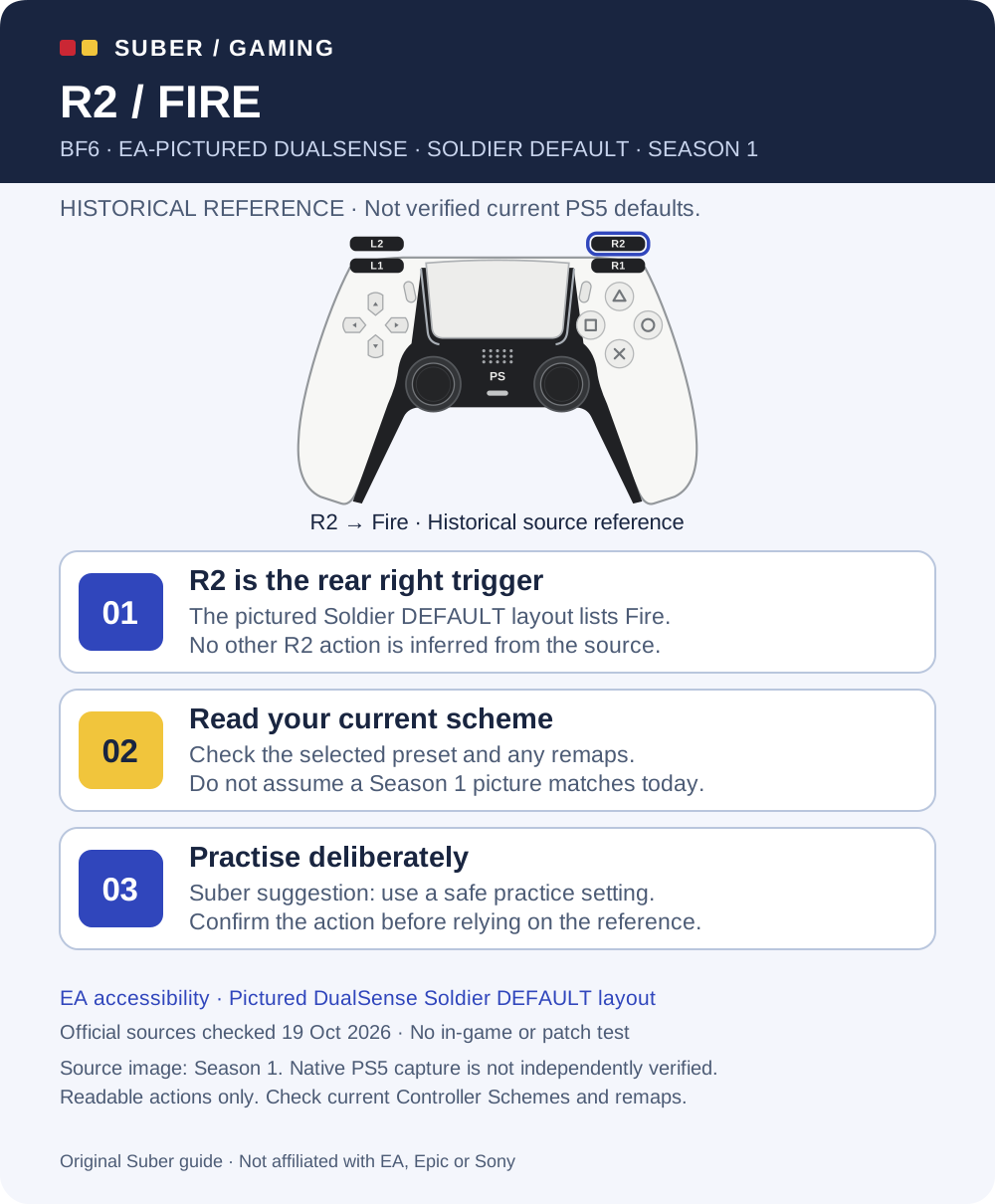
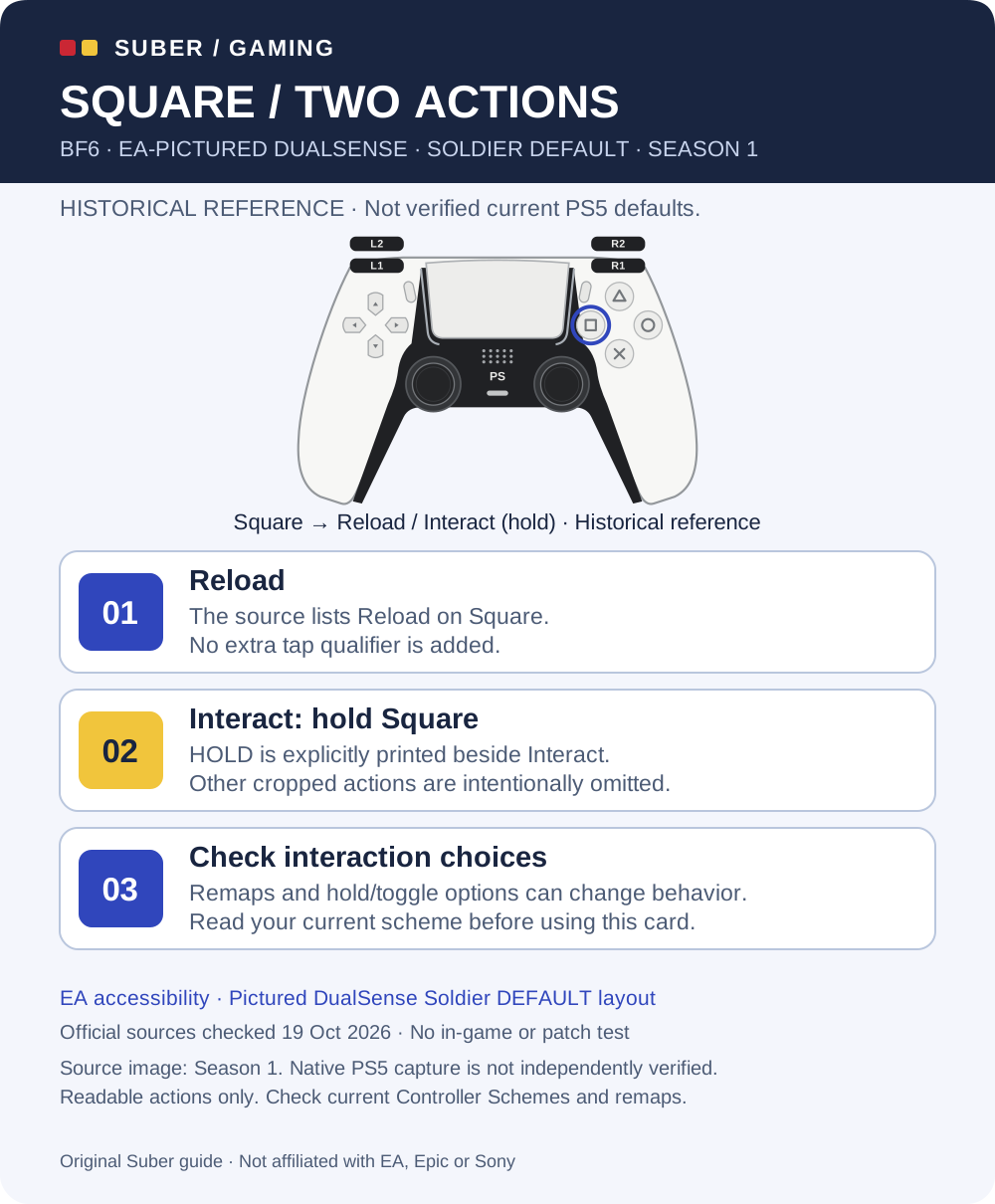
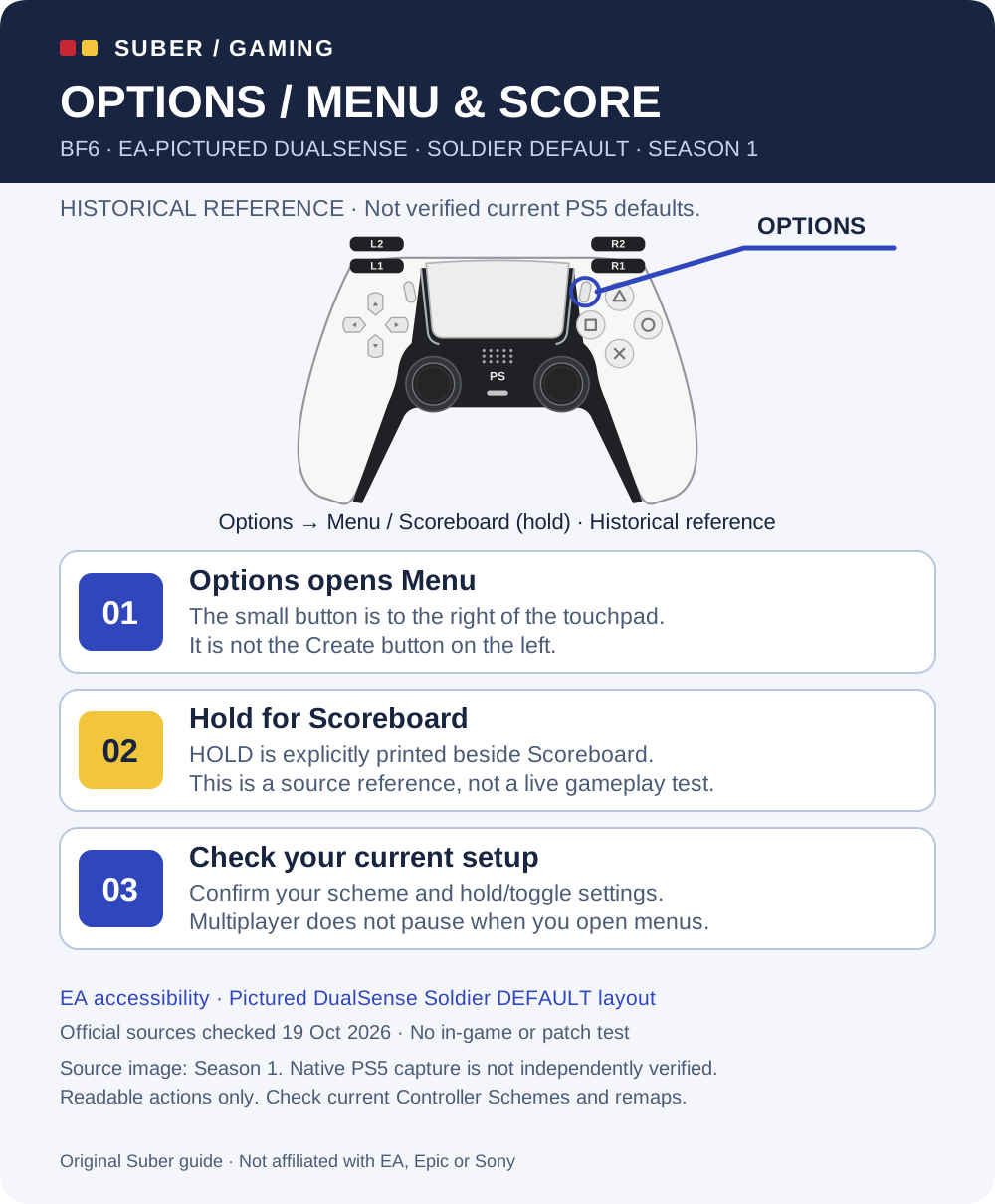
These original redraws show only fully readable action labels in EA’s pictured DualSense Soldier layout. The source says DEFAULT sticks and DEFAULT buttons and visibly shows Season 1. The screenshot’s execution platform is not independently verified. These are separate historical references, not part of the current guide count.

Open the three Season 1 reference cards

R2 / FIRE

BF6 · EA-PICTURED DUALSENSE · SOLDIER DEFAULT · SEASON 1. HISTORICAL REFERENCE · Not verified current PS5 defaults.. R2 is the rear right trigger: The pictured Soldier DEFAULT layout lists Fire. No other R2 action is inferred from the source.. Read your current scheme: Check the selected preset and any remaps. Do not assume a Season 1 picture matches today.. Practise deliberately: Suber suggestion: use a safe practice setting. Confirm the action before relying on the reference.. Source image: Season 1. Native PS5 capture is not independently verified. Readable actions only. Check current Controller Schemes and remaps.. Original Suber illustration, not a screenshot.
Original Suber diagram · Save SVG · Open full size (new tab)

Historical reference only: EA’s pictured DualSense Soldier layout, DEFAULT sticks and DEFAULT buttons, with Season 1 visible. Not verified current PS5 defaults.

R2
Fire

Source is cropped. Only the listed readable actions are reproduced. Match the current game’s Controller Schemes before using any reference.

SQUARE / TWO ACTIONS

BF6 · EA-PICTURED DUALSENSE · SOLDIER DEFAULT · SEASON 1. HISTORICAL REFERENCE · Not verified current PS5 defaults.. Reload: The source lists Reload on Square. No extra tap qualifier is added.. Interact: hold Square: HOLD is explicitly printed beside Interact. Other cropped actions are intentionally omitted.. Check interaction choices: Remaps and hold/toggle options can change behavior. Read your current scheme before using this card.. Source image: Season 1. Native PS5 capture is not independently verified. Readable actions only. Check current Controller Schemes and remaps.. Original Suber illustration, not a screenshot.
Original Suber diagram · Save SVG · Open full size (new tab)

Historical reference only: EA’s pictured DualSense Soldier layout, DEFAULT sticks and DEFAULT buttons, with Season 1 visible. Not verified current PS5 defaults.

□ Square
Reload
□ Square (hold)
Interact

Source is cropped. Only the listed readable actions are reproduced. Match the current game’s Controller Schemes before using any reference.

OPTIONS / MENU & SCORE

BF6 · EA-PICTURED DUALSENSE · SOLDIER DEFAULT · SEASON 1. HISTORICAL REFERENCE · Not verified current PS5 defaults.. Options opens Menu: The small button is to the right of the touchpad. It is not the Create button on the left.. Hold for Scoreboard: HOLD is explicitly printed beside Scoreboard. This is a source reference, not a live gameplay test.. Check your current setup: Confirm your scheme and hold/toggle settings. Multiplayer does not pause when you open menus.. Source image: Season 1. Native PS5 capture is not independently verified. Readable actions only. Check current Controller Schemes and remaps.. Original Suber illustration, not a screenshot.
Original Suber diagram · Save SVG · Open full size (new tab)

Historical reference only: EA’s pictured DualSense Soldier layout, DEFAULT sticks and DEFAULT buttons, with Season 1 visible. Not verified current PS5 defaults.

Options
Menu
Options (hold)
Scoreboard

Source is cropped. Only the listed readable actions are reproduced. Match the current game’s Controller Schemes before using any reference.

Official updates & history

Selected official records

Checked 22 October 2026, 15:46 UTC. Selected official records, not complete history or a live feed.

· Announcement · future plans

Season 5 roadmap

November 10: European Casino, multiplayer leaderboards and balance changes planned. December 8: server browser, Platoons and two map revisions planned. These are not a new patch released today.

Official source ↗
Update history · more official records

· Event · October 20–November 10

Dead Space: Convergence

Limited-time event. Check the official event guide for its activities and availability.

Official source ↗

· Patch · release announced for October 13

Update 2.1.1.0

Season 5 brought Vegas Strip and Area 51, weapons, REDSEC changes and vehicle/anti-air tuning. Publication date is October 12; release date is October 13.

Official source ↗