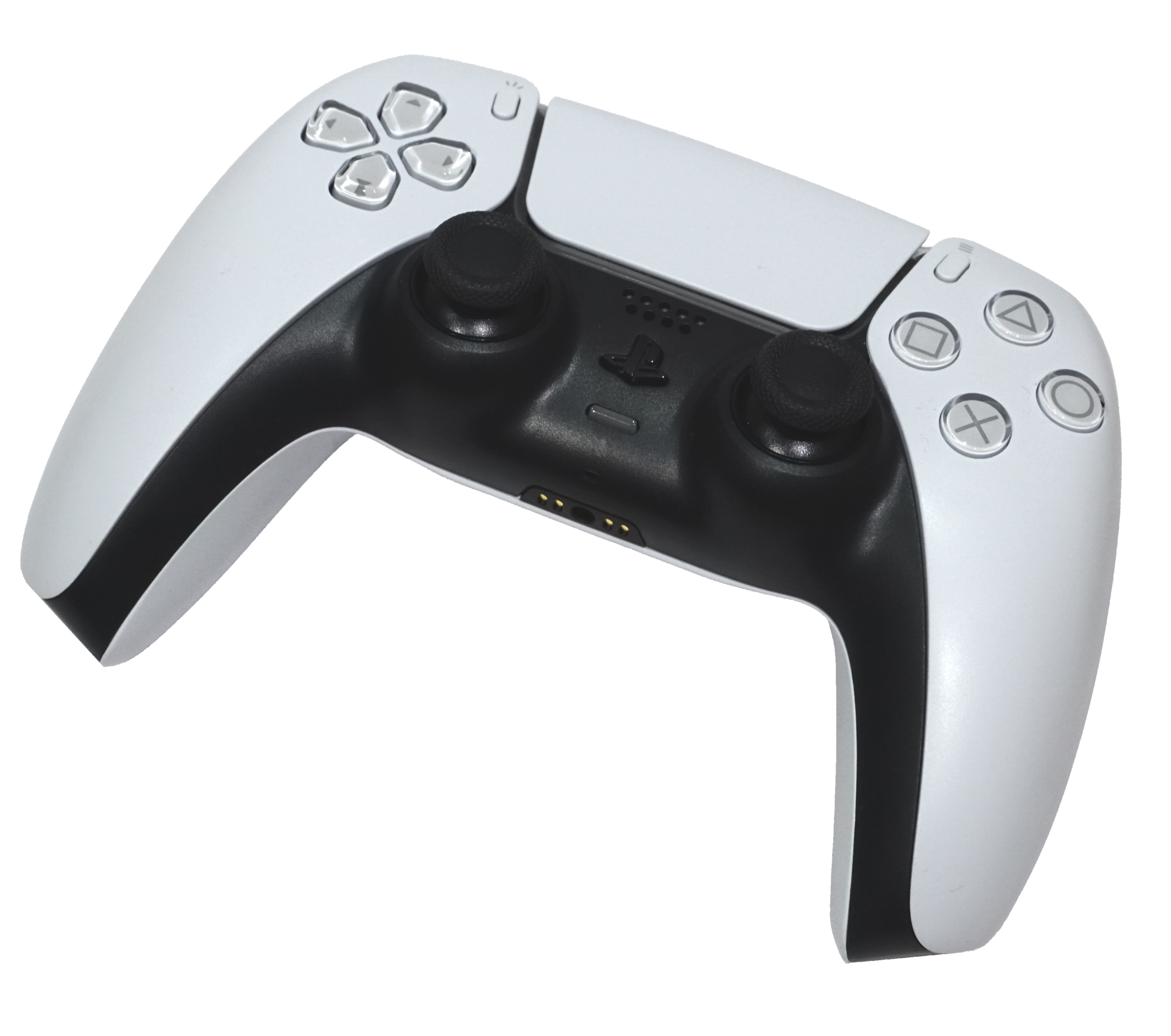
L3 and R3 are presses, not extra buttons beside the sticks.
Move the left or right stick for directional input. Press the left stick for L3 or the right stick for R3.
The right-hand face buttons are Triangle at the top, Circle at the right, Cross at the bottom and Square at the left.
Create sits left of the touchpad; Options sits right. The PS and mute buttons are below it.
Try this: Use the labelled text below the photo, or open the original photograph full size. Rear controls are listed separately because they are hidden.
Sources, setup & guide scope
Game / system
PlayStation 5 · PS5 · standard DualSense
Controls
Hardware reference; game bindings may differ
Version
Standard DualSense hardware; not Edge back buttons. Sony sources checked 2026-10-24 UTC.
Hardware names and locations follow Sony’s guide. The photograph is unchanged; labels are separate page text. Game actions, remapping and DualSense Edge-specific controls are outside this reference.
Sources checked 2026-10-24 UTC. Hardware and setup source review; not in-game testing.
Check the basics before changing a game’s sensitivity.
To pair with your powered-on PS5, connect the controller by USB and press PS.
For device updates, open Settings → Accessories → Controller (General) → DualSense Wireless Controller Device Software.
For remapping, open Settings → Accessibility → Controllers → Custom Button Assignments for DualSense Wireless Controller. Review your changes before applying.
Try this: A system-level remap can affect how you interpret game guides. Keep your actual setup in mind.
Sources, setup & guide scope
Game / system
PlayStation 5 · PS5 · standard DualSense
Controls
Hardware reference; game bindings may differ
Version
Standard DualSense hardware; not Edge back buttons. Sony sources checked 2026-10-24 UTC.
Setup pointers from Sony’s support. Suber does not connect to or change your console. Read Sony’s current instructions if your menus differ.
Sources checked 2026-10-24 UTC. Hardware and setup source review; not in-game testing.