

PS5 ↔ SWITCH 2 · START TOGETHER
Rocket League setup guide
Form a cross-platform party, check voice, then learn the basics together.
Sources checked
Controller buttons
Hardware locations, not verified Rocket League actions. Check your game’s active controls and edition below.
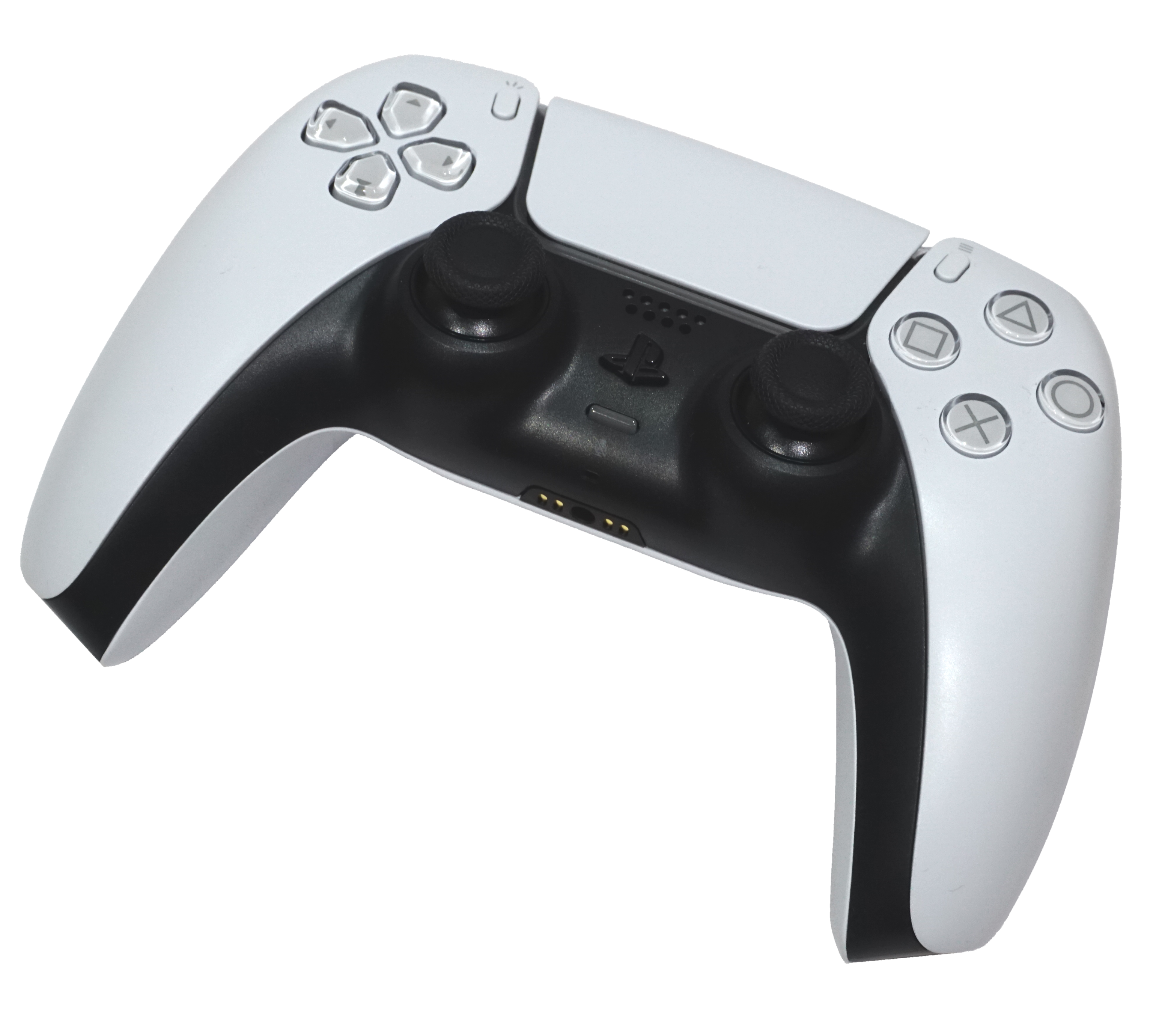
Source-checked setup, not hands-on console testing. Uses compatible PS4 and original Switch software; some party-screen labels and microphone details remain unverified.
Install the right editions
PS5: Install the PS4 Rocket League application, playable on PS5 through backward compatibility. [1][2]
Switch 2: Install the original Nintendo Switch Rocket League application. Nintendo marks it supported on Switch 2 with behavior consistent with Switch. [1][2]
Neither installation is verified here as a native PS5 or native Switch 2 edition. [1][2]
Accounts, copies & online costs
- Free base game for each player; no Friend's Pass or paid pack needed. [1][2][3][4]
- Each player should use their own platform account and their own linked Epic account. Cross-platform friends belong to Epic rather than the individual console friend list. Do not link both players' accounts into a single shared identity. [1][2][3][4]
- PlayStation Plus and Nintendo Switch Online are not required for Rocket League online play. [1][2][3][4]
- The explicit subscription statement is an official 2020 free-to-play change, rechecked in currently available documentation; store pages still list the game free. [1][2][3][4]
Get into the same session
Epic's current support uses Epic ID for friend requests but distinguishes immutable account ID from display name elsewhere; Friends List shows the Epic display name under the console name. A Nintendo friend code, PSN name, display name and immutable Epic account ID are not interchangeable; follow the game’s current prompt. [6][8][7]
- Both open the game, finish the sign-in/tutorial prompts and use their own linked Epic identities. [4][3]
- Open Settings → Gameplay and ensure Cross-Platform Play is checked. It is enabled by default. [5]
- Open Friends List → Add Epic Friend and enter the friend's Epic identifier as requested by the game. Epic's support article calls it Epic ID. [6]
- The recipient opens Friends List → Notifications and selects the green check mark to accept. [6]
- Select the accepted friend from the in-game Friends List and send a party invite; the recipient checks Notifications for the invite. [7]
- Confirm both players appear in the party, then have the party leader choose a mode for two teammates, such as Casual 2v2. [7][1]
Talk to each other
Rocket League voice works with friends across platforms. Open Settings → Chat → View Voice Chat Settings; select the same Party channel. If disabled by child-account restrictions, a parent must review the account's allowed features. [9][7][10][11]
Official Switch troubleshooting advises a compatible headset through the audio jack or USB-C. Switch 2 built-in microphone support in the original Switch application was not verified; test it instead of promising it. [9][7][10][11]
Party text chat works across platforms. In matches, Quick Chat reaches all platforms; typed in-match messages are visible only on the same platform. [9][7][10][11]
Check your own controls
Use Settings → Controls → View/Change Bindings to inspect the installed bindings. Practise accelerate, reverse, steer, jump, boost, powerslide and ball-camera switching using each screen's prompts. Do not copy Xbox letters onto Nintendo buttons. [9]
Official Controls navigation is verified; a current complete PS4-on-PS5/Switch-on-Switch-2 binding chart was not found. An old Player Controls URL now redirects to the support category. [9]
First 20 minutes — editorial practice plan
A flexible learning plan, not an official walkthrough or progression promise. Flexible learning plan after downloads and account setup; not a guaranteed timetable.
- 0–5 minutes: Complete setup, form the party and test Party voice. Allow longer if either download or account setup is unfinished.
- 5–10 minutes: Read your bindings and try basic driving, braking, jumping and brief boost bursts in training.
- 10–20 minutes: Try Casual 2v2. Agree one player challenges while the other stays back; swap after each play. Treat the first match as practice, not a ranked test.
If setup gets stuck
Cross-platform friend cannot join
Verify Cross-Platform Play and check the in-game Notifications tab rather than console-only friend invitations. [5][7]
Voice is silent
Check the Party channel, voice settings, headset connection and mute control. On Switch software, try the officially documented wired/USB-C headset route. [9][10]
Friend requests or voice are restricted
Have the parent/guardian review the Epic permissions. A parental PIN may be needed for requests. [6][7]
Still unverified
These gaps are not claims that a feature is impossible. Check your current game’s prompts rather than assuming a button or screen.
- Current complete console button mappings.
- Exact present-day party-send button label.
- Whether this Switch application uses the Switch 2 built-in microphone.
- Competitive entry and rank-disparity requirements were intentionally not included.
- Source terminology conflict: Epic ID versus immutable account ID versus Epic display name.
Official sources
Reviewed . Page-check dates are not game-update dates. These links open only when you select them; source review is not console testing.
- Rocket League — PlayStation (opens new tab)
- Rocket League — Nintendo (opens new tab)
- Rocket League Free To Play: Seasons, New Ranks, And More (opens new tab)
- Access your Epic Games friends list on a new console account (opens new tab)
- Play Rocket League with a friend on a different platform (opens new tab)
- Send and receive friend requests in Rocket League (opens new tab)
- Use your Friends List in Rocket League (opens new tab)
- What is an Epic Games Account ID and where can I find it? (opens new tab)
- Change your Voice Chat settings in Rocket League (opens new tab)
- Troubleshoot Voice Chat Issues in Rocket League (opens new tab)
- Rocket League Cross-Platform FAQ (opens new tab)
Existing official artwork is reused for editorial identification, not as a console-edition label. Copyright stays with its owner; no reuse licence or endorsement is claimed.